

I used to think Photoshop was only for photo edits, but once I started exploring photoshop digital art techniques, I realized it could become a complete art studio on one screen. From sketching and coloring to lighting, textures, and final polish, Photoshop gives artists the freedom to build artwork layer by layer without needing expensive traditional supplies.
The best part is that you do not need to master every tool at once. You only need the right workflow, a few smart habits, and enough practice to understand how brushes, layers, masks, and blending modes work together.
What Makes Photoshop Useful for Digital Art?
Photoshop is powerful because it gives artists control over every stage of the creative process. You can sketch rough ideas, adjust proportions, test colors, create shadows, add texture, and fix mistakes without starting over.
For beginners, this flexibility matters. Traditional art can feel permanent, but Photoshop allows experimentation. You can duplicate layers, hide details, change colors, and compare versions before choosing the final look.
Essential Photoshop Tools Every Digital Artist Should Know
Brush Tool
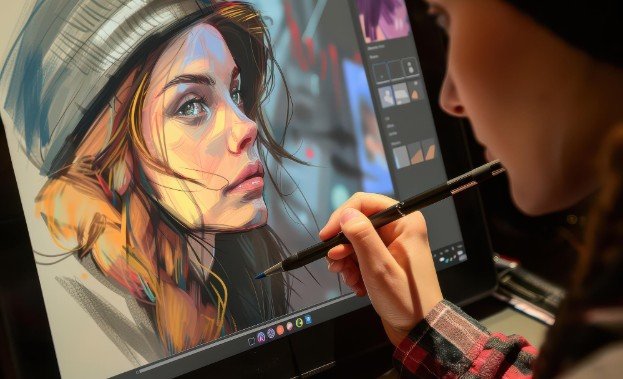
The Brush Tool is the heart of digital painting. It helps you sketch, shade, blend, texture, and add detail. Start with simple round brushes before downloading custom brush packs. A hard brush works well for clean edges, while a soft brush helps with smooth shadows and light transitions.
Layers and Masks
Layers keep your artwork organized. You can place your sketch on one layer, colors on another, shadows on another, and highlights on top. This makes editing easier because one mistake does not damage the full artwork.
Layer masks are useful when you want to hide or reveal parts of an image without deleting anything. They are especially helpful for hair, clothing folds, glowing effects, and blend objects with harmonize.
Blending Modes
Blending modes can instantly improve lighting and mood. Multiply is useful for shadows, Overlay can boost contrast, Screen helps with glow, and Color Dodge can create bright highlights. These tools help your artwork feel more cinematic without overpainting everything manually.
A Simple Photoshop Digital Art Workflow
A strong workflow keeps your art from becoming messy. Start with a rough sketch. Do not worry about perfect lines at first. Focus on the pose, shape, and composition.
Next, clean up the lineart. Use a separate layer and lower the opacity of your rough sketch. As you practise different digital art styles to learn, keeping your lineart organized will make it easier to adjust details and maintain a consistent look. After that, add flat base colors under the lineart. Keep each major area separate when possible, such as skin, hair, clothes, objects, and background.
Once your base colors are ready, add shadows. Think about where the light source is coming from. If light comes from the left, shadows should fall more strongly on the right. Then add highlights to the areas facing the light.
After shading, add texture. Skin, metal, fabric, clouds, stone, and hair should not look the same. Texture brushes, clipping masks, and soft details can make your art feel more realistic.
Finally, use adjustment layers like Levels, Curves, Hue/Saturation, and Color Balance. These final changes help unify the full piece.
Best Techniques to Improve Your Digital Painting
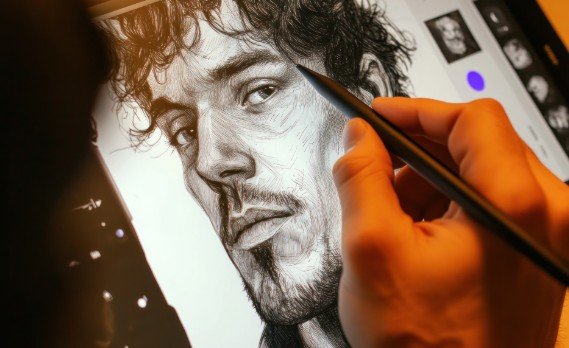
Start With Strong Silhouettes
Before adding details, zoom out and check the shape of your artwork. A strong silhouette makes characters, objects, and scenes easier to understand. This is especially important for fantasy art, concept art, game characters, and poster-style illustrations.
Use Reference Images Smartly
Reference images help you understand anatomy, fabric, lighting, metal, plants, architecture, and facial expressions. Do not copy blindly. Study how things work, then apply the idea to your own artwork.
Build Depth With Lighting
Lighting can turn flat art into a professional-looking piece. Use darker values in the background and stronger contrast near the subject. Add rim light around the edge of a character or object to separate it from the background.
Add Texture Without Overdoing It
Texture should support the artwork, not distract from it. Use it carefully on clothing, walls, hair, weapons, landscapes, and background objects. Too much texture can make the art look noisy.
Polish With Color Correction
Final polish matters. A simple color balance adjustment can make the artwork warmer, cooler, moodier, or more dramatic. Camera Raw filters can also improve contrast, clarity, and overall atmosphere when used lightly.
Common Beginner Mistakes to Avoid
Many beginners use too many brushes too early. A large brush collection will not automatically improve your art. Learning pressure control, edges, values, and lighting is more important.
Another mistake is painting everything on one layer. This makes editing harder and increases frustration. Use layers wisely, but do not create so many that you lose track.
Beginners also often skip values. If your artwork does not look clear in grayscale, the colors may not save it. Good contrast helps viewers understand the subject quickly.
Frequently Asked Questions
1. Are photoshop digital art techniques hard for beginners?
They can feel confusing at first, but beginners can improve quickly by learning brushes, layers, masks, shading, and simple lighting one step at a time.
2. What Photoshop tool should I learn first for digital art?
Start with the Brush Tool because it teaches sketching, coloring, shading, texture, and detail work.
3. Can I make professional digital art in Photoshop?
Yes, many artists use Photoshop for illustration, concept art, posters, character design, and commercial artwork.
4. How often should I practice digital painting?
Practicing 30 to 60 minutes a few times a week is enough to build better control, cleaner shading, and stronger visual judgment.
Final Thoughts
When I first opened Photoshop for art, it felt like too many tools were fighting for my attention. But once I focused on sketching, layers, brushes, lighting, textures, and final polish, everything became easier. The real secret is not using every feature. It is learning which tools help your artwork look cleaner, deeper, and more intentional.
If you want better results, start small, finish simple projects, study references, and improve one skill at a time. With patience, photoshop digital art techniques can help you turn basic ideas into artwork that feels polished, expressive, and ready to share.